How to Use GPT Image 2
From your first prompt to power-user techniques — prompt structure, text rendering, image-to-image, thinking mode, and the mistakes everyone makes.
10 minutes start to finish.
What You Need to Start with GPT Image 2
GPT Image 2 runs entirely in your browser — no installs, no GPU, no developer setup required for the web app. The first image is free with no signup, no card. After that, a quick sign-up unlocks 10 credits (one more standard image). The model rewards specific, paragraph-style prompts: instead of "a cat", try "a tortoiseshell cat curled on a velvet armchair beside a bay window, late-afternoon rim light, 50mm portrait, soft bokeh." Wrap any literal text — signs, logos, headlines — in double quotes for 99% rendering accuracy.
A Browser
Chrome, Safari, Firefox, Edge. Mobile Safari + Chrome Android fully supported.
Free Trial (No Signup)
First image free. Sign up for 10 credits = 1 more image. No card.
A Specific Prompt
Subject + style + lighting + frame. Quote literal text. Paragraphs > keywords.
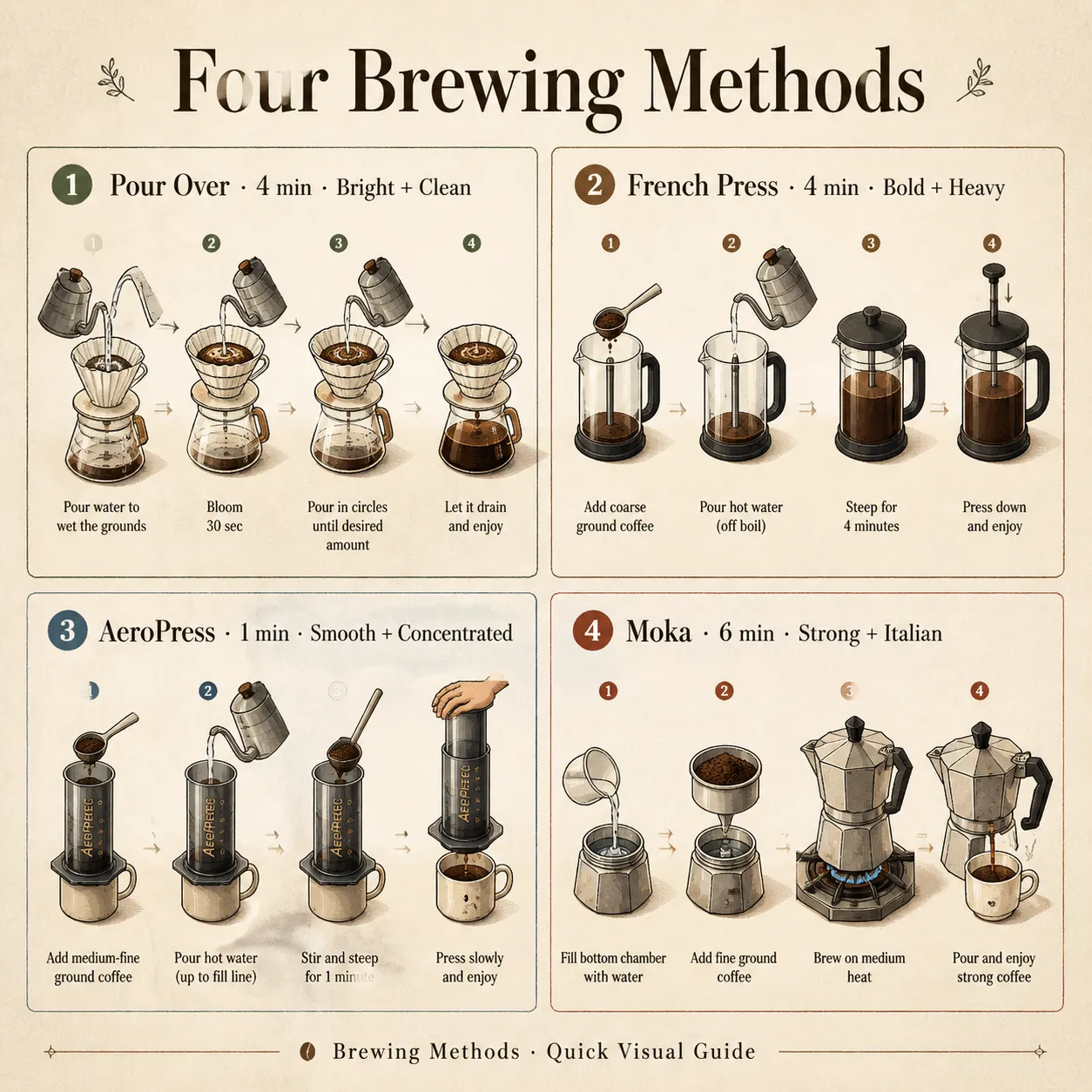
GPT Image 2 Generation Workflow
Four steps from prompt to final image. Open the generator on the homepage, write a sequential prompt (subject → style → light → frame → quality), choose 2K (10 credits, ~6s) or 4K upscale (30 credits, sharper), then refine via image-to-image mode to keep characters consistent across the series. A typical paragraph prompt: "Editorial magazine cover, monochrome portrait of a fashion model in profile, sharp Helvetica headline reading \"FUTURE NOW\" extending to page edge, charcoal background, single hard top-down light, dramatic chiaroscuro."
Open the Editor
Generator on the homepage. Textarea + resolution + aspect chips in one view.
Write a Sequential Prompt
Subject → style → light → frame. First clause carries the most visual weight.
Resolution & Format
2K (10 cr, fast) or 4K (30 cr, sharper). PNG / WebP / JPEG.
Generate & Refine
~6s per render. Switch to image-to-image, drag the result, describe edits.
Advanced GPT Image 2 Techniques
Three techniques that separate beginner output from production-grade work.
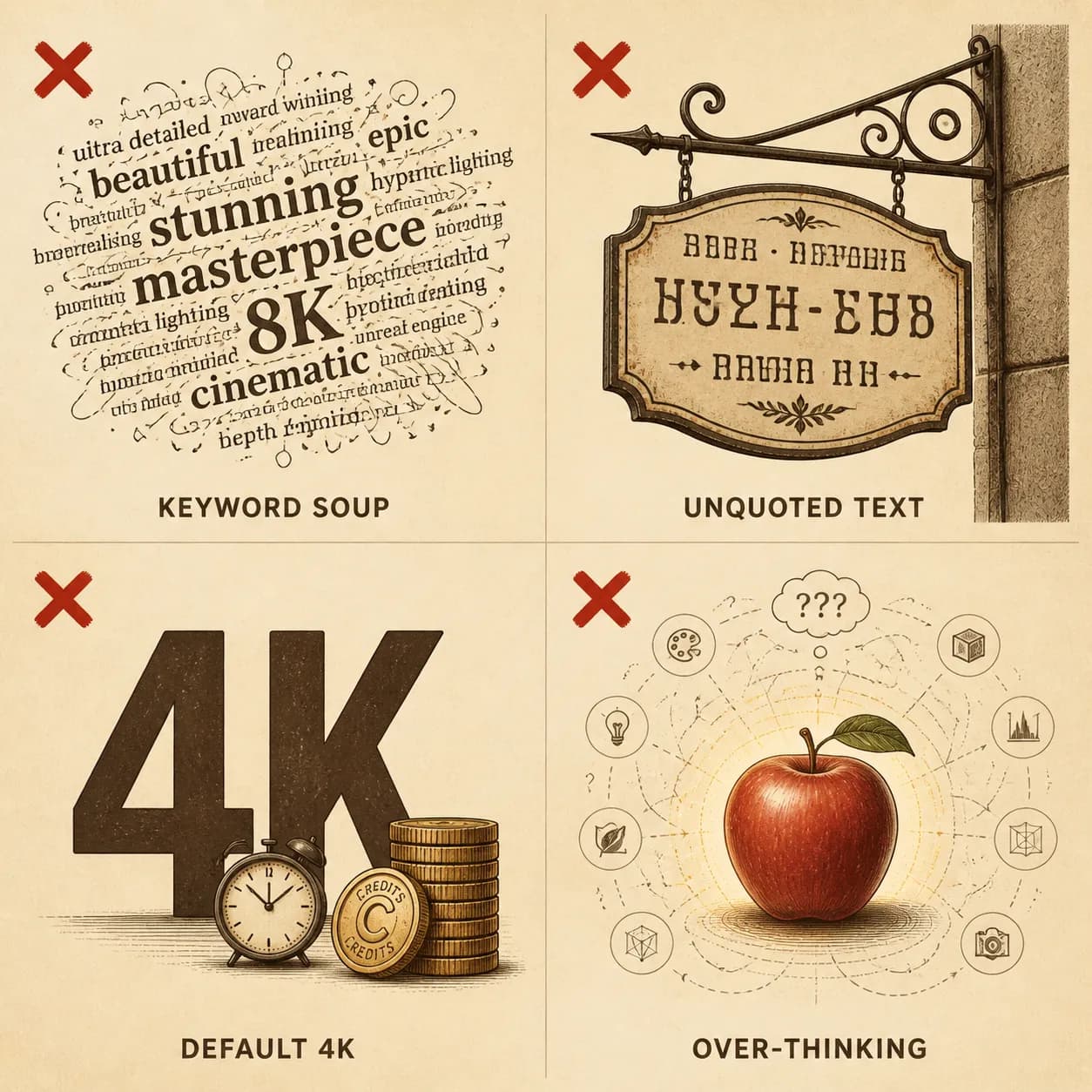
Common GPT Image 2 Mistakes to Avoid
Four habits left over from earlier diffusion models that hurt GPT Image 2 output quality. Fix these and the model's strengths — text rendering, sequential prompt understanding, character lock — surface immediately. Most of these are invisible until you know what to look for: a prompt that worked OK on DALL-E 3 may be actively bad for GPT Image 2's multimodal foundation architecture.
Keyword-Soup Prompts
"beautiful, stunning, masterpiece, cinematic, 8K" — GPT Image 2 treats it as noise.
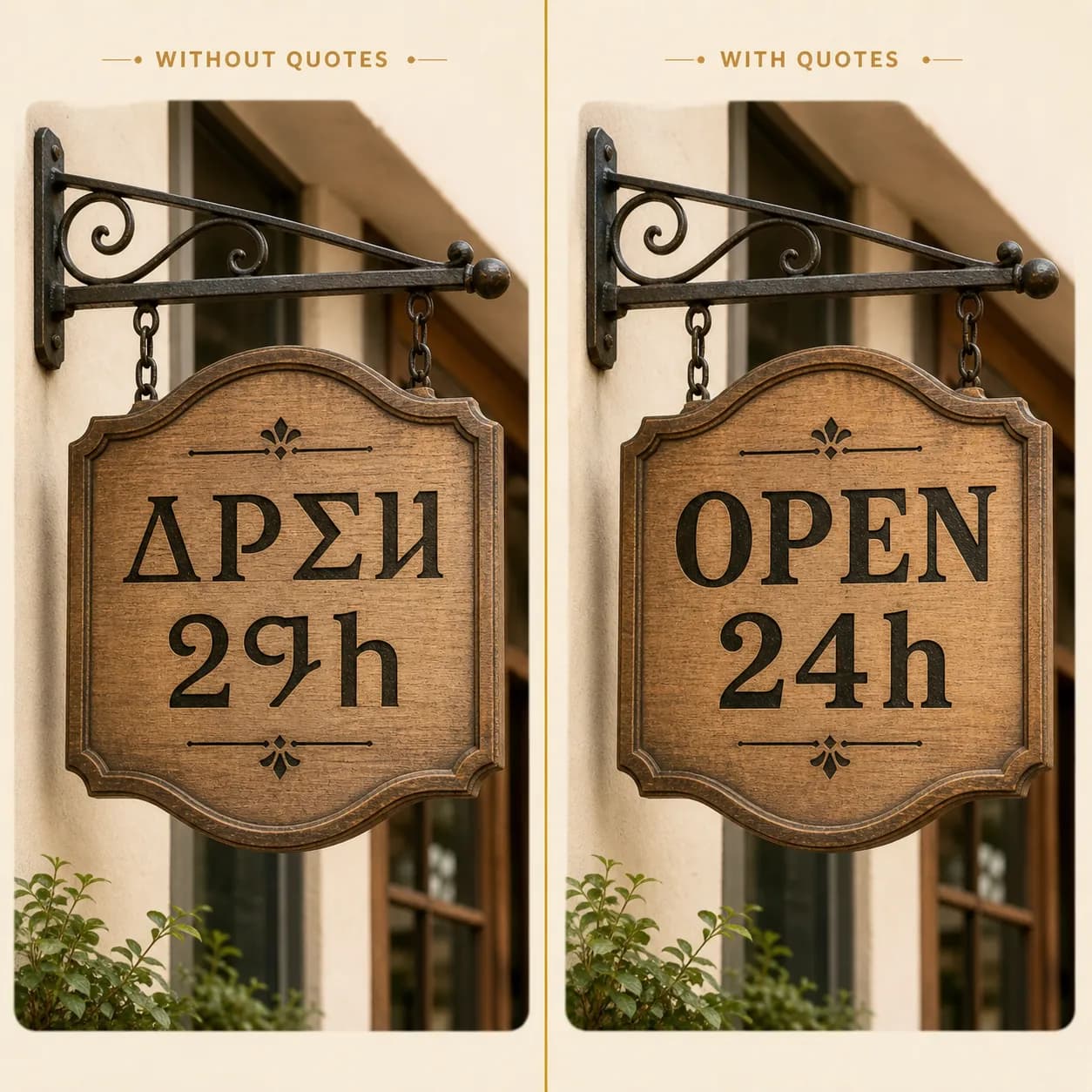
Unquoted Literal Text
Open without quotes = invented glyphs. Always wrap literal text in double quotes.
Defaulting to 4K
4K = 3× slower, 30 cr vs 10. Reserve for print / large-format / zoom-in.
Thinking Mode on Simple Tasks
Thinking is for multi-size packs / comics / facts. "Cat in a hat" wastes 5× credits.
GPT Image 2 How-to FAQ
Quick answers to common questions about using GPT Image 2.
Try GPT Image 2 Now
1 free image, no signup. Or get 10 credits free with a quick sign-up.